AI Agent Component Spec
AI Agent Component Spec
| Field | Value |
|---|---|
| Packages | cometchat_chat_uikit + cometchat_calls_uikit (add to pubspec.yaml) |
| Required setup | CometChatUIKit.init(uiKitSettings: UIKitSettings) then CometChatUIKit.login(uid) — Calls SDK must also be installed |
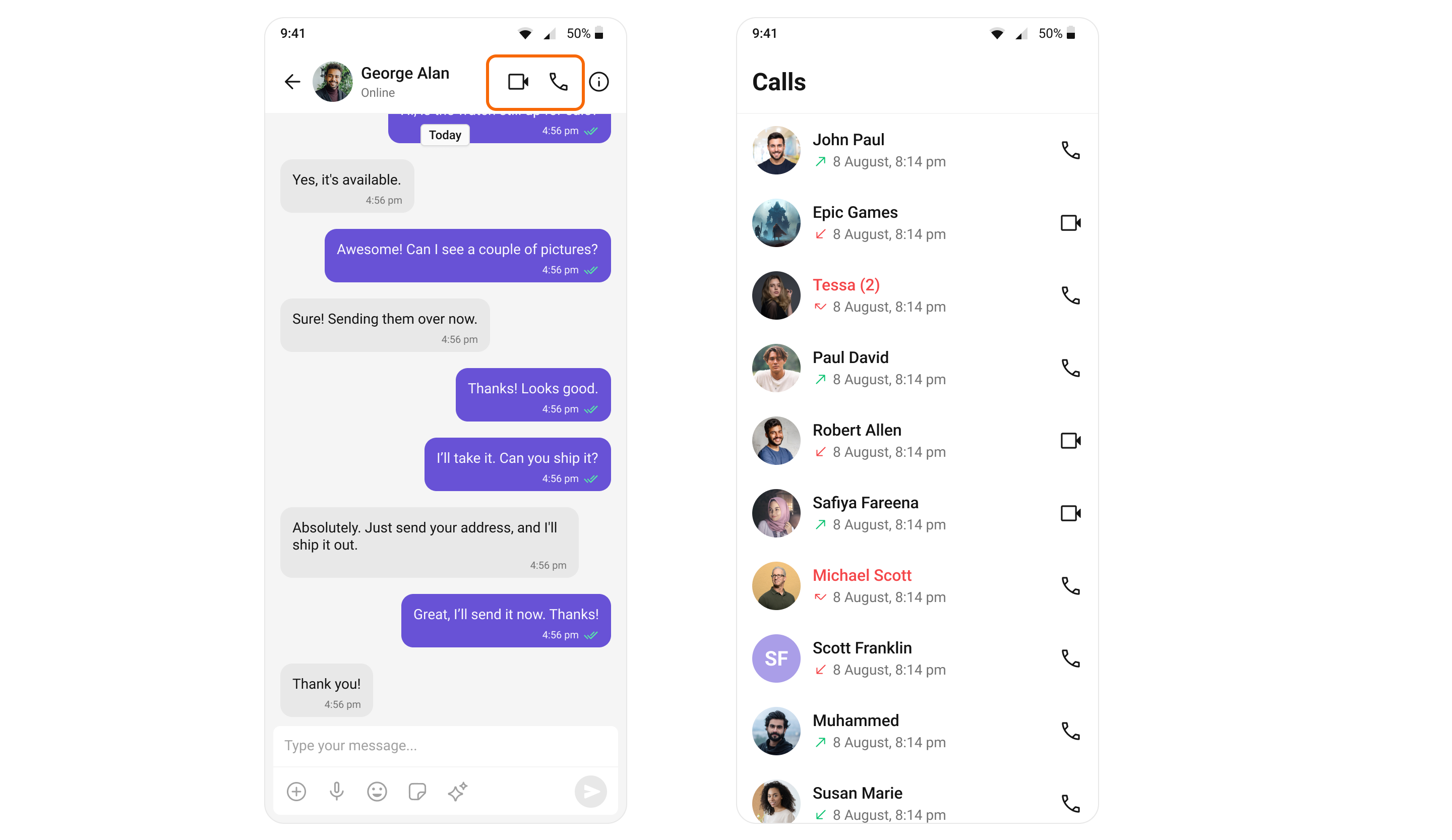
| Call features | Incoming Call, Outgoing Call, Call Logs, Call Buttons |
| Key components | CometChatCallButtons → Call Buttons, CometChatIncomingCall → Incoming Call, CometChatOutgoingCall → Outgoing Call, CometChatCallLogs → Call Logs |
| Auto-detection | UI Kit automatically detects the Calls SDK and enables call UI components |
| Requirements | minSdkVersion 24 (Android), iOS 12+ |
Integration
First, make sure that you’ve correctly integrated the UI Kit library into your project. If you haven’t done this yet or are facing difficulties, refer to our Getting Started guide. This guide will walk you through a step-by-step process of integrating our UI Kit into your Flutter project. Once you’ve successfully integrated the UI Kit, the next step is to add the CometChat Calls SDK to your project. This is necessary to enable the calling features in the UI Kit. Here’s how you do it:Update build.gradle
If your Flutter project’s minimum Android SDK version (minSdkVersion) is below API level 24, you should update it to at least 24. Navigate to the
android/app/build.gradle file and modify the minSdkVersion property within the defaultConfig section.- Groovy
If you want to use the Flutter UI Kit or enable calling support within it, you’ll need to set the
minSdkVersion to 24 in your android/app/build.gradle file.Update iOS Podfile
In your Podfile located at
ios/Podfile, update the minimum iOS version that your project supports to 12.- Ruby
Modify UIKitSettings
To activate the calling features, you’ll need to modify the UIKitSettings using To allow launching of Incoming Call screen from any widget whenever a call is received, set
callingExtension and pass the key in the widget.- Dart
key: CallNavigationContext.navigatorKey in the top most widget of your project (the widget that appears first on app launch).- Dart
Listeners
For every top-level widget you wish to receive the call events in, you need to register the CallListener listener using theaddCallListener() method.
- Dart
Features
Incoming Call
The Incoming Call widget of the CometChat UI Kit provides the functionality that lets users receive real-time audio and video calls in the app. When a call is made to a user, the Incoming Call widget triggers and displays a call screen. This call screen typically displays the caller information and provides the user with options to either accept or reject the incoming call.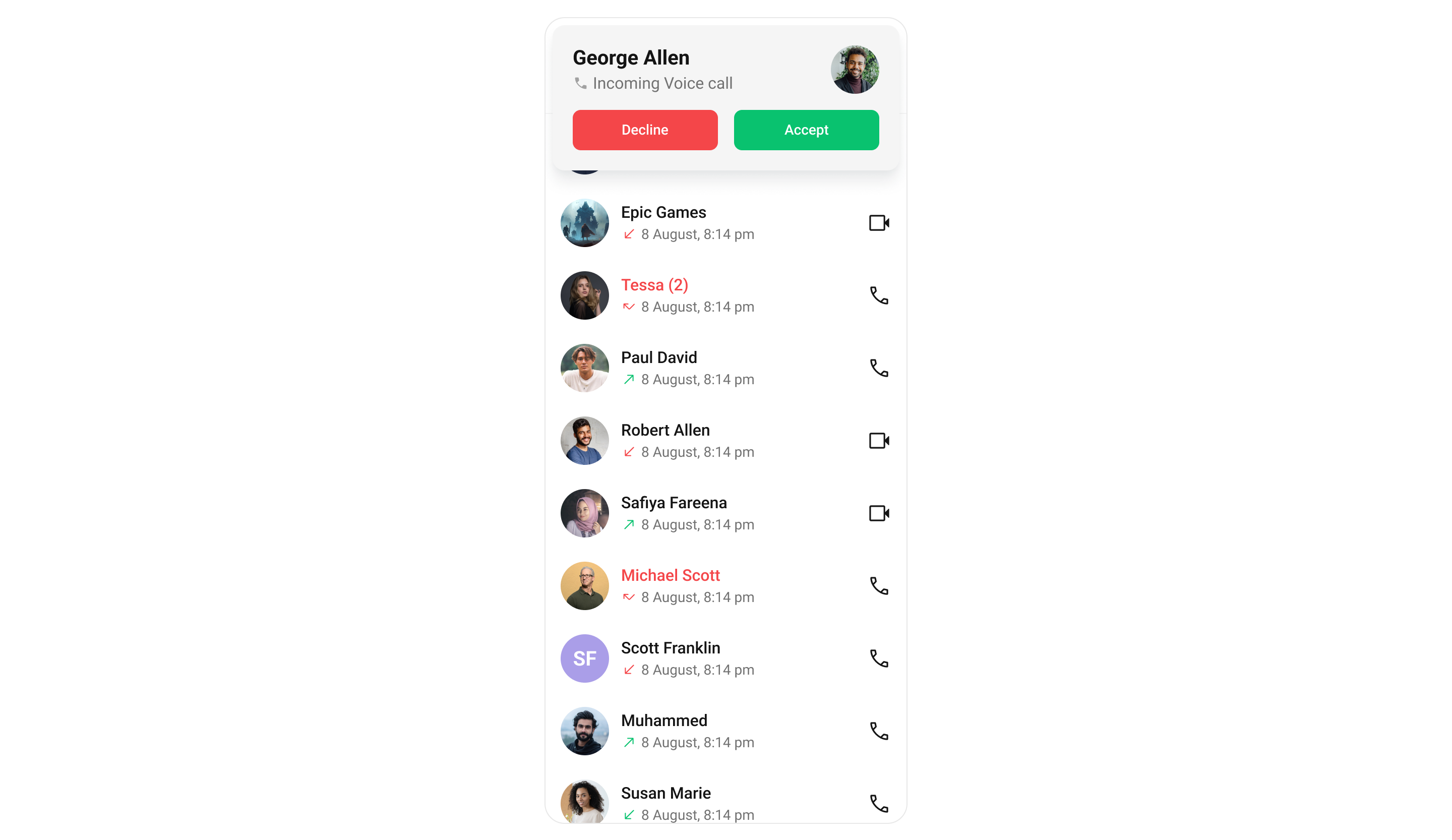
Outgoing Call
The Outgoing Call widget of the CometChat UI Kit is designed to manage the outgoing call process within your application. When a user initiates an audio or video call to another user or group, this widget displays an outgoing call screen, showcasing information about the recipient and the call status. Importantly, the Outgoing Call widget is smartly designed to transition automatically into the ongoing call screen once the receiver accepts the call. This ensures a smooth flow from initiating the call to engaging in a conversation, without any additional steps required from the user.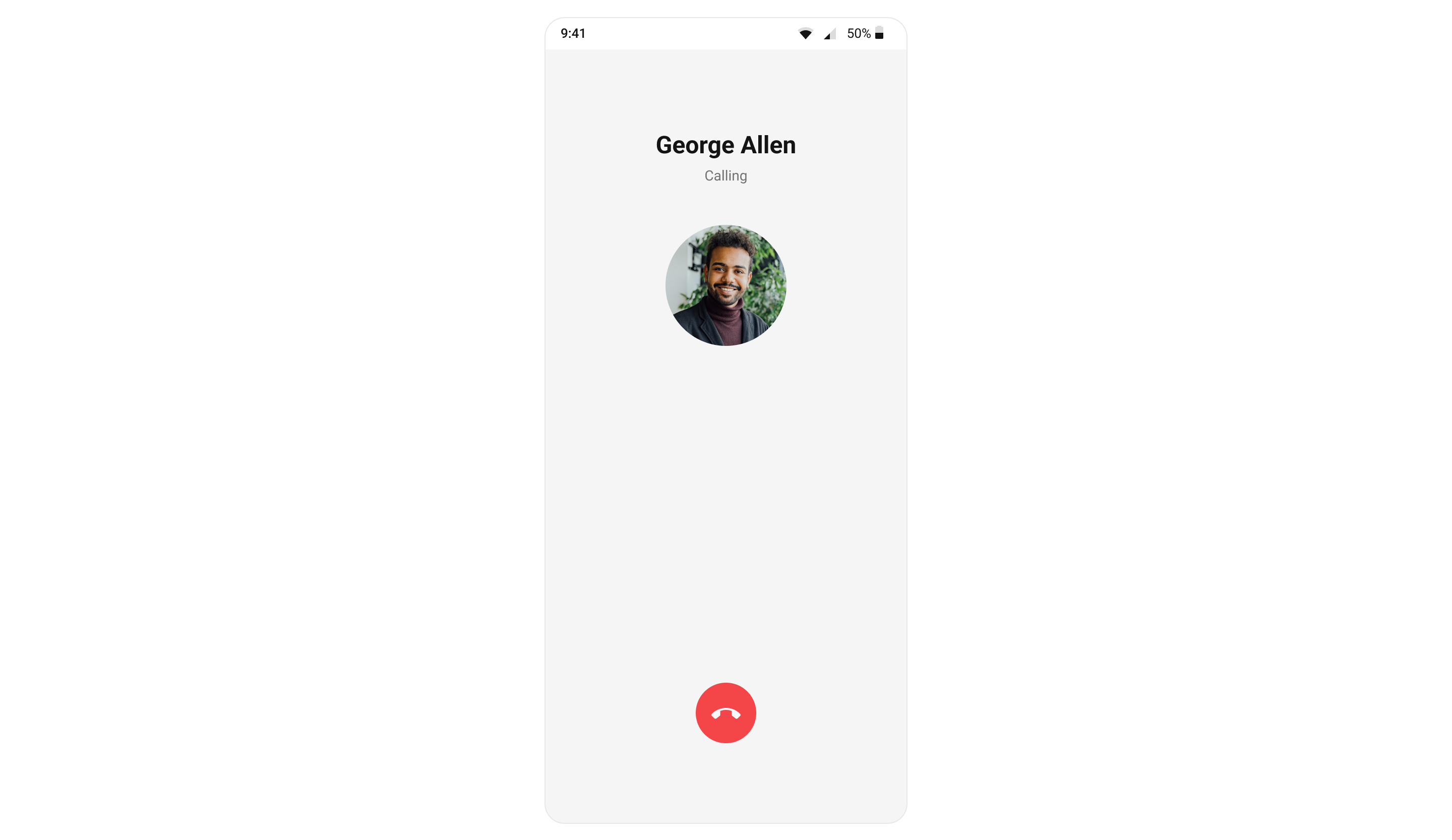
Call Logs
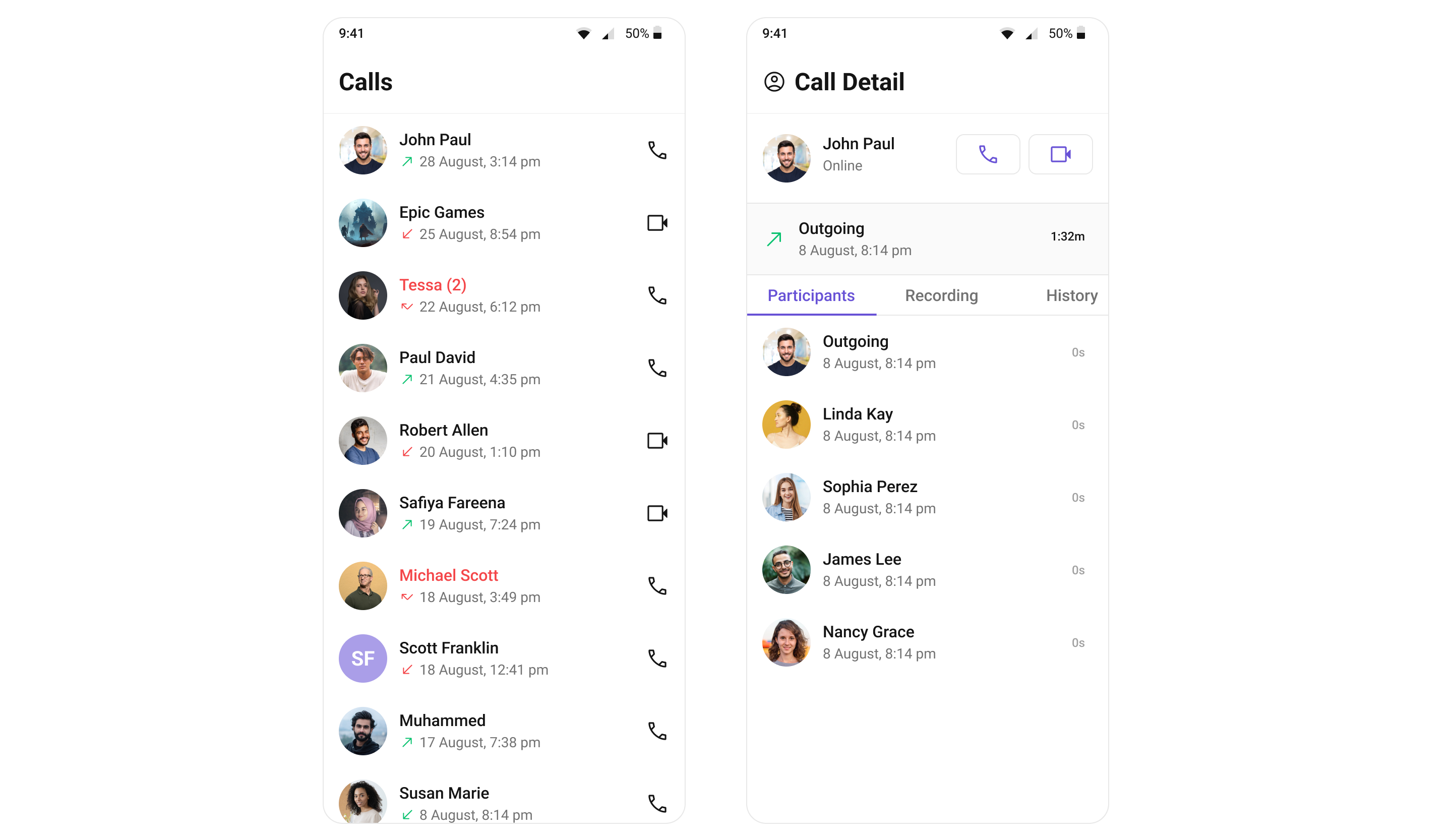
Call Logs widget provides you with the records call events such as who called who, the time of the call, and the duration of the call. This information can be fetched from the CometChat server and displayed in a structured format for users to view their past call activities.